Flownetic Consulting

Website chat · Fin Messenger Switch to Support email

Evaluation brief · Salesforce Agentforce Service (formerly Service Cloud)

From a live chat to a Salesforce Case.

Fin answers in Messenger on your website. Your team can help in Salesforce. Conversation captures: 13 September; the Case: a separate repeat run on 14 September.

Request journey

Customer Salesforce Fin arrives recorded eligibility fin response handover outcome Customer opensMessenger Fin conversationstarts Fin Workflowchooses path Fin respondsin Messenger Live-agenthandoff Flow must persistrouting attributes Resolved inthe Messenger Case created,chat ends Agent repliesfrom Salesforce Customer staysin Messenger

Solid lines show the observed chat runs of 13 and 14 September. Dashed paths come from documentation; dotted paths depend on your setup. Select any stage on the map to see that step below.

Customer opens chat

Live Messenger demo on a fictional site; no banking service connected.View larger

What happensAlex asks to freeze card ending 4242 and review the unfamiliar Metro Store charge.

Decisions and sources

What your team decidesWhere Messenger appears and which customers can use it.

Captured from a real Messenger session connected to our demo Fin workspace, on a locally hosted fictional website. This is not Preview. No real banking service is connected. Source: How Fin integrates with Salesforce.

Fin answers in chat

View 1 of 2
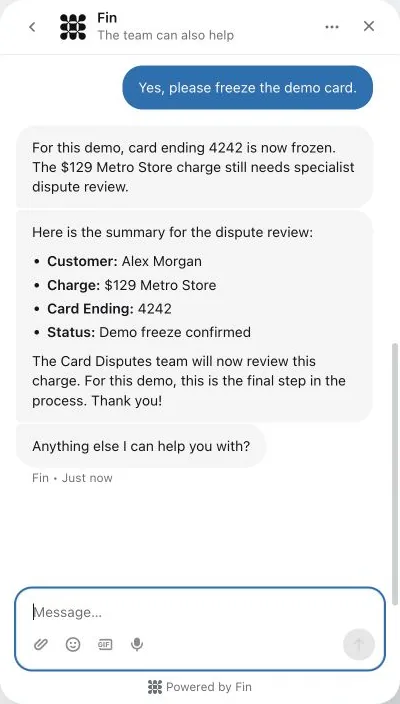
Live Messenger demo; the card freeze is simulated.View larger
Live Procedure editor; not proof every instruction was applied.View larger

What happensFin confirms Alex’s request. Guidance shapes its wording; a configured Procedure supplies the checks and next steps.

Decisions and sources

What your team decidesWhich Salesforce context Fin can use, which Procedures and connectors to configure, what actions are allowed, and when a person should take over.

The confirmation was observed in live Messenger. The wider editor shows the live demo Procedure’s Guidance; it does not prove every instruction was applied. Guidance alone does not grant access to Salesforce data. Source: Fin Messenger — setting up with Salesforce.

Fin data connectors · Fin Procedures explained

Fin follows your process

View 1 of 3
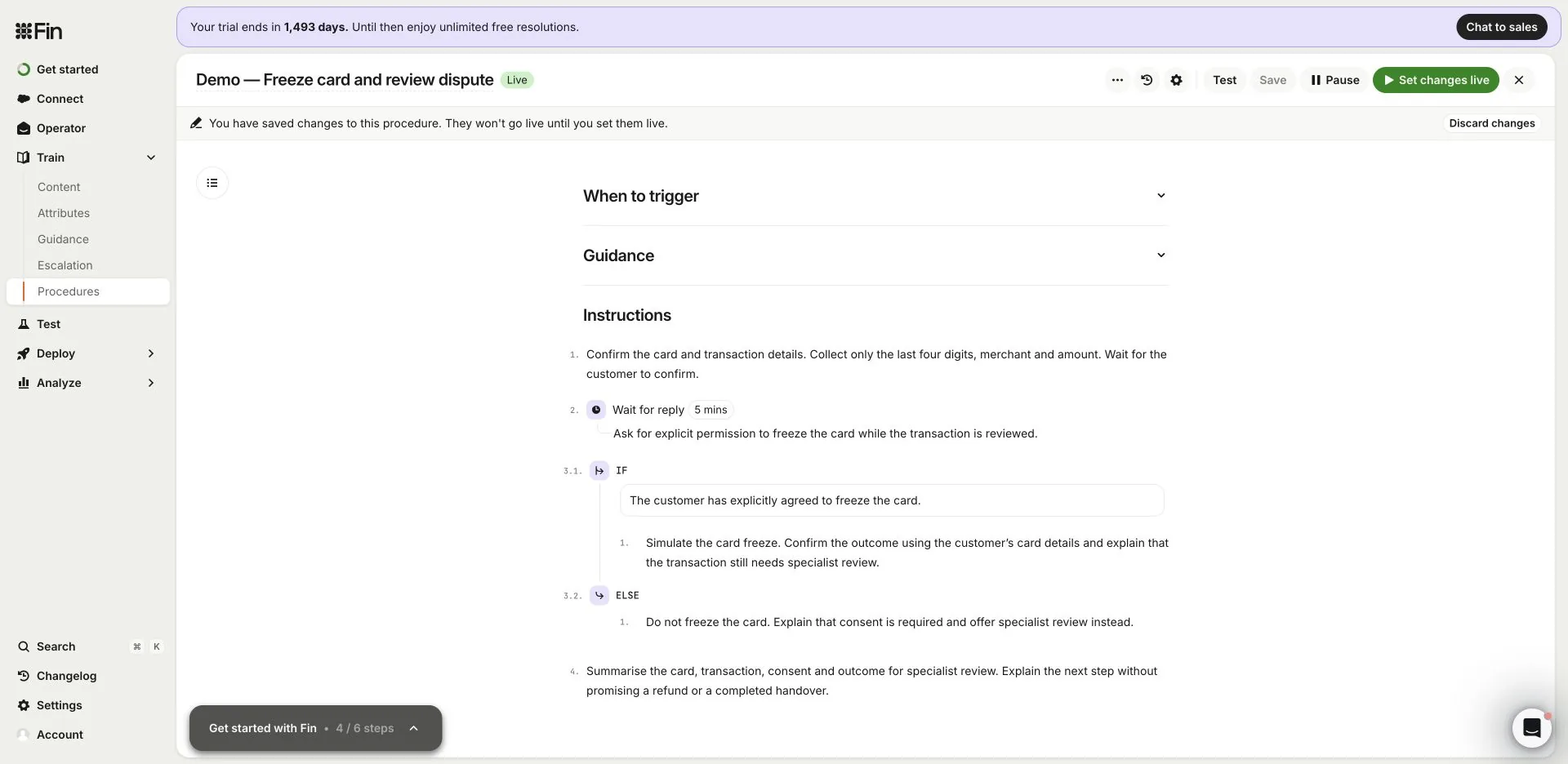
Draft Procedure with an earlier live response; not run as one sequence.View larger
Live Messenger demo; the card freeze is simulated.View larger

What happensA Procedure collects the customer’s details, waits for permission and chooses the next step. Add connected tools where your process needs them.

Decisions and sources

What your team decidesWhich processes to automate, which data and actions Fin can access, and which checks or approvals are required.

The revised setup is saved as a draft of the same demo Procedure. Its native Wait for reply and IF/ELSE controls are configured, but this revision has not been run. The accompanying conversation is from the earlier live demo. The tool menu is an actual hover capture; the pointer is a visual annotation. No banking connector is configured and no real card action ran. Source: Fin Procedures explained. Procedures can call your systems through data connectors; none is connected in this demo.

Data connectors

Alex asks for a person

View 1 of 3
Fin promised a person right away; this 13 Sep run stopped here and created no Case.View larger
Live workspace; the summary alone does not assign a Salesforce team.View larger
Configuration snapshot; not an execution trace of the 14 September chat.View larger

What happensAlex asks for human help; the follow-up capture shows the request. The workflow’s hand-off step decides: create a Salesforce Case for follow-up, which ends the chat, or hand to a live agent through the applicable Salesforce messaging setup. The run pictured here, on 13 September, stopped at the email request; a repeat run on 14 September created the Case in step 5.

Decisions and sources

What your team decidesWhether the customer needs live help or follow-up, and what context the receiving team needs.

Actual Messenger reached the human-help workflow and generated a summary; the 13 September conversation shown here stopped at the email request. In a repeat run on 14 September, Alex gave the email the workflow asked for; it is on the Case as Web Email. Salesforce Case creation was verified on 21 September (step 5); owner assignment and a human response were not. The live workflow was inspected read-only on 21 September: its hand-off path adds a summary note, sends the closing message and runs Create Salesforce case with its assignment shown as “Unassigned” in Fin; live escalation is not set up in it. Source: Fin Messenger — setting up with Salesforce.

Case created in Salesforce

View 1 of 2
Demo Case created by the chat workflow; no agent reply or owner change tested.
Demo Salesforce Case; captured 21 September 2026, unchanged since creation.View larger

What happensIn a repeat run of the same script on 14 September, Alex asked for a person and gave the email the workflow requested; the workflow ended the chat and created this Salesforce Case with the conversation summary. This is the Case follow-up path; live handover to an agent is a different option.

Decisions and sources

What your team decidesWhich record type, fields and owner or queue the created Case should have, and who works it next.

Case 00001020 was read in the demo Salesforce org on 21 September 2026, signed in, without changes. Its feed holds the conversation summary and the full transcript of the 14 September chat, posted at creation through the connected user; its Description field reads only “Case from Fin AI Agent with”; Case Origin and Contact are empty; the owner is the connected user and Case History shows creation only. No agent reply, owner change or customer email was tested. Source: Fin Messenger — setting up with Salesforce.

Conversation captures from a 13 September demo chat; the Case from a 14 September repeat run. Editor views show configuration, not a run. The card freeze is simulated.

Salesforce readiness checklist

17 checks in four stages. Stages 1–2 are facts to gather with your Salesforce admin; stage 3 is specific to the Website chat route; stage 4 is what you agree and test before go-live.

Stage 1 · Required features and licences

5 checks
  1. 1.1

    Confirm the org's API access

    Confirm with your Salesforce account team that your edition includes Web Services API access: Agentforce Service Core, Advanced and Max include it; Pro Suite needs the API add-on, while Starter Suite does not include it.

    Sources and details

    Salesforce edition comparison. On legacy editions, Enterprise, Unlimited and Performance include API access; Professional requires the Web Services API add-on. Developer Edition includes API access for testing. API requirements. Additional API Calls increases an allowance; it does not enable API access. API add-on guidance.

  2. 1.2

    Salesforce Case management

    For Case follow-up, confirm with your Salesforce account team that your edition includes Case management; Agentforce Service Core, Advanced and Max include it. If you want live agent handover, complete the separate channel checks below.

    Sources and details

    Salesforce edition comparison. Messenger setup guide. Feature inclusion alone does not establish compatibility with every Fin setup.

  3. 1.3

    A Fin plan with Salesforce integration

    Fin

    Confirm with Fin that your plan includes the Salesforce integration.

    Sources and details

    Fin plan requirement. Fin's public setup guide specifies this entitlement rather than a named plan tier.

  4. 1.4

    Salesforce Knowledge — only if you use it

    Treat Salesforce Knowledge as optional. If your team authors help articles in Salesforce, confirm with your Salesforce account team whether your edition includes it: Advanced and Max include Knowledge read/write, while Core offers it as an add-on.

    Sources and details

    Salesforce edition comparison. Fin's Salesforce sync accepts published articles that are public or visible to logged-in users; other audience targeting is excluded. Knowledge sync guide.

  5. 1.5

    Live chat: confirm the channel before the add-on

    Only if you want live handover, ask Salesforce and Fin to confirm the supported channel, edition, add-on and rep licence assignments before you configure it.

    Check details

    For Partner Messaging (BYOC), Salesforce documents Digital Engagement with Partner Messaging or Agentforce Contact Center Digital with Partner Messaging, plus service-user access and permissions. Partner Messaging rep requirements. Enhanced Chat has a different user permission-set licence and permissions: Enhanced Chat user requirements. Have both vendors confirm which path applies; these are alternatives, not a shopping list.

Stage 2 · What to have ready

3 checks
  1. 2.1

    What Fin handles and can use

    Choose the requests Fin should try first, the help content and Salesforce customer information it needs, what it must never see, and which requests must always go to a person.

    Sources and details

    Include the fields needed for answers and handover. Fin permissions reference.

  2. 2.2

    Salesforce customisations that affect Cases

    Ask your Salesforce administrator to flag mandatory Case fields and existing assignment or automation rules, because these can affect whether Fin can create, update or hand over a Case.

    Sources and details

    Integration constraints · Cases data guide.

  3. 2.3

    A place to test before go-live

    Provide a Salesforce sandbox or other test environment, plus representative, fictional customer requests, before you open the integration to customers.

    Sources and details

    Keep test and live connections distinct. Fin environment guide.

Stage 3 · Website chat (Fin Messenger)

7 checks
  1. 3.1

    Choose Case follow-up or live handover

    Choose whether customers should receive Case follow-up or live handover, then document the chosen path and after-hours response.

    Check details

    Create a Salesforce Case ends the chat and creates a Case for follow-up. Live handover keeps the customer in Messenger while an agent responds from Salesforce. Decide the customer expectation and destination for each. Messenger setup guide.

For Case follow-up

  1. 3.2

    For Case follow-up: check success and failure

    For Case follow-up, verify a resulting Case and the customer-facing success and failure messages.

    Check details

    Check the record type, required fields, summary, Contact matching and receiving queue. Test the customer-facing confirmation and failure message as well as the resulting Case. Live-chat prerequisites do not apply to this path.

Only if you want live handover

  1. 3.3

    Confirm the applicable live-chat setup

    Fin

    Only if you want live handover, ask Fin to confirm the applicable guide and channel type for this workspace.

    Check details

    Fin's connection and Messenger setup guides now use BYOC, which Salesforce calls Partner Messaging; a separate Fin guide covers moving existing Enhanced Chat hand-offs to BYOC. Confirm your path and package with Fin before configuring it. Fin connection guide · Messenger setup guide · Migration guide.

  2. 3.4

    For BYOC: check channel, permissions and relay

    Only if you want live handover through BYOC, confirm the channel and relay status and check the required permissions.

    Check details

    The current Fin guide calls for a Chat package, external client app, active Messaging Channel, SCRT2 Read/Create access to Fin Message Events, and a running AWS EventBridge relay. Include that transport in the security review. Fin connection guide.

  3. 3.5

    Prepare the agent's console and routing

    Only if you want live handover, prepare and test queue membership, agent availability and the agent-side experience.

    Check details

    For Partner Messaging, prepare Omni-Channel, a Messaging Session queue, rep permissions and presence statuses. Test acceptance, transfer and no available agent. Org preparation · Rep preparation. For Enhanced Chat, use its matching setup guide.

  4. 3.6

    Agree identity and website setup

    Only if you want live handover, document the identity rules and prepare test users covering each login state.

    Check details

    Name the website or portal owner. Check logged-in JWT identity, Contact/Account matching, logout and anonymous users. Messenger setup guide.

  5. 3.7

    Check the fields on the saved record

    Only if you want live handover, confirm the expected record fields and mapping, then save and inspect a test record.

    Check details

    At live handover, Fin sends the conversation and customer data as pre-chat data, which you map to your records with Salesforce Flows; configure and test those mappings. Messenger setup guide. For Case creation, check required fields and follow-up ownership separately.

Stage 4 · Before go-live

2 checks
  1. 4.1

    Agree what would make the trial a success

    Set the target the trial is judged against and when you will measure it. Then test an answer, missing information, a handover to a person and a failed request, checking what the customer sees and the Salesforce record.

  2. 4.2

    Name who decides and who signs off

    Name who judges the trial and who signs off configuration, content, security and go-live. Name who keeps help content accurate, who can pause Fin, and how your team takes over.

What can Fin access?

Reads

Case conversations and Salesforce Case, Contact and Account fields available to the integration. Salesforce Knowledge is a separate content sync.

Writes

Replies, Case context and Fin outcome fields. Handover can set the Case owner; Contact and Account updates have a separate control.

You control

Salesforce access, content sources, workflow actions and handover rules. Guidance shapes answers; it does not grant data access.

Read the data-access guide →

Questions before you start

Can we keep our support addresses and existing queues?

For Cases, start with your existing intake and decide which requests should reach Fin. Fin's email setup includes address verification. Review automatic replies and assignment rules together, then test the sender, thread and destination queue.

Should we choose Case follow-up or live handover?

Choose Case follow-up when customers can wait for a reply. Choose live handover when they need to keep chatting with your team. Decide from the service experience you need, then check the matching channel requirements.

Fin’s two handover paths

Can our agents keep working in Salesforce?

Yes. With Cases, the team works the Case. With Messenger, choose between creating a Case for follow-up and live handover to an agent in Salesforce. Confirm the applicable chat setup using the checklist above.

What happens when nobody is available to take over?

Agree the destination, customer message and expected response for out-of-hours requests. Include a test with no available agent. Do not assume the live handover experience is also your after-hours experience. See check 4.1.

Can Fin use our Salesforce Knowledge articles?

Selected published articles can sync into Fin. Check audience restrictions and publication status with your knowledge owner. Keep edits in Salesforce and check the sync before relying on a changed answer. See check 1.4.

When will Fin see changes to a Salesforce record?

For Salesforce Cases, Fin refreshes field values when it is assigned a Case. Changes made during that session are picked up on the next assignment, not while the session is running. This is separate from Knowledge article sync.

How do we protect account-specific information?

Define what a visitor can ask anonymously and what needs verified identity. Your administrator and security owner approve the identity checks, fields and actions for the selected route. Test a signed-out or unverified user as well as a recognised customer. See check 2.1.

How long will it take, and what will our team need to do?

The schedule depends on missing content, how many hours a week your Salesforce admin can give, security review and approval of changes. We agree milestones after checking those.

Can we start small and pause if something goes wrong?

Yes. Start with a few common, low-risk requests and list the ones that must always go to a person. Before go-live, agree who can pause Fin, how new requests return to your team and what happens to work already in progress. Test that fallback in your environment. See check 4.2.

Your scoping summary

A short agenda for your first implementation conversation.

Choose the starting pointBring these to the first conversation

  • Where Messenger appears and who can use it.
  • Case creation for follow-up or live handover to an agent.
  • The identity checks, saved data and out-of-hours experience.

Agree the workPut these in the written scope

  • Configuration, customer inputs and the test results needed before go-live.
  • Who approves access, answers and ongoing changes.
  • Check the Messenger setup guide with your administrator.
Prepare your scoping brief Optional · stays on this page

Answer what you know. “Not sure” is fine. Review and copy the brief to share with your team or with us.

Your answers stay on this page until you copy or download them. Nothing is submitted automatically.

Planning the trial with your team? The shared trial brief asks the same first questions and saves each answer with Flownetic as you go.

1. What should the trial prove?
2. Where should customers reach Fin?
3. Which kinds of requests should Fin try first?
4. What Salesforce setup do you have? Check the feature and licence requirements
5. How should requests reach your team?

Follow-up suits customers who can wait for a reply. Live handover keeps the conversation in chat.

6. Your support today
7. People and timing

Talk through your trial

The first conversation checks your route, what is still missing and the work to scope. A written proposal follows; configuration and test results come during the agreed engagement.

Request a 30-minute call Opens a Google Calendar booking page

What to have ready for the call: what the trial should prove, which requests Fin should try first, where customers should reach it, and your rough monthly support volume.

Planning a trial? Prepare a shared trial brief with your team: sign in, and answers save as you go.